


Modern Industrial IoT devices, embedded controllers and network equipment increasingly support HTTPS and TLS to secure communication with web browsers, cloud services and management applications.
To establish an encrypted HTTPS connection, the device requires an HTTPS server certificate and its associated private key. For development, testing, private networks and many industrial installations, a self-signed ECDSA certificate provides a simple and practical solution without relying on a public Certificate Authority (CA).
This guide explains how to create a self-signed ECDSA HTTPS server certificate using OpenSSL on Windows. After that, you can upload the generated certificate and private key to compatible HTTPS-enabled devices, including the TCW242 Industrial IoT Controller.
Why Use an ECDSA HTTPS Server Certificate?
An HTTPS server certificate allows a device to prove its identity and establish an encrypted connection with a client.
When the certificate is self-signed, the device owner creates and signs it instead of using a trusted Certificate Authority. As a result, web browsers display a warning until the certificate is explicitly trusted. However, engineers commonly use self-signed certificates in:
- Industrial controllers
- Embedded devices
- Local networks
- Test environments
- Development systems
For systems that are directly accessible from the public Internet, use a certificate signed by a trusted Certificate Authority.
Certificate Creation Workflow
The following diagram illustrates the complete workflow, from generating an ECDSA private key with OpenSSL to enabling HTTPS on the device.
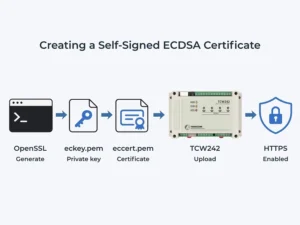
First, use OpenSSL to generate the private key, create the certificate and export the final private key. Then, upload the certificate and private key through the device’s web interface.
Install OpenSSL
OpenSSL is a free, open-source toolkit for creating certificates and cryptographic keys.
Download OpenSSL for Windows from: https://slproweb.com/products/Win32OpenSSL.html
The Win64 OpenSSL Light version is sufficient for this guide.
Advanced users may also install OpenSSL through:
- Windows Subsystem for Linux (WSL)
- Chocolatey
- Git for Windows
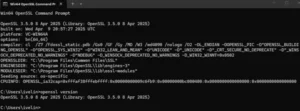
After installation, launch start.bat and verify that OpenSSL is available by running:
If the command is not recognized, add the OpenSSL installation directory to your system PATH or run the commands from the installation directory.
Step 1 – Generate the ECDSA Private Key
Generate a new private key using the recommended secp384r1 elliptic curve.
Supported curves are secp224r1, secp384r1 and secp521r1.
This command creates an intermediate private key file named eckeygen.pem, which is used in the following steps.

Step 2 – Create the HTTPS Server Certificate
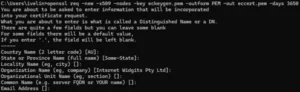
Generate a self-signed certificate valid for ten years.
OpenSSL will ask for information such as Country, State, Locality, Organization, Organizational Unit, Common Name and Email Address.
Enter the values required by your organization or simply press Enter to leave them blank.
The generated server certificate is saved as eccert.pem.
Step 3 – Export the Private Key
Extract the final private key from the intermediate key file.
The exported private key is saved as eckey.pem.

Upload the Certificate and Private Key
After completing the previous steps, your working directory contains three files:
- eccert.pem – HTTPS server certificate
- eckey.pem – Private key
- eckeygen.pem – Intermediate file that can be deleted


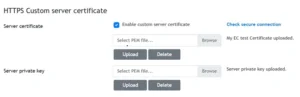
Upload eccert.pem as the server certificate and eckey.pem as the private key.
After enabling HTTPS, reconnect to the device using:
Depending on your browser, you may need to explicitly trust the self-signed certificate before continuing.
Security Recommendations
- Keep the private key confidential.
- Never share the private key with third parties.
- Generate a unique certificate and private key for every device.
- Delete the intermediate file after the certificate has been created.
- For devices accessible from the public Internet, consider using a certificate signed by a trusted Certificate Authority.




sales@logicbus.com | support@logicbus.com | +1 619 616 7350 | Start conversation